Remote Magic Trackpad
Control your Mac’s mouse and keyboard from your Android device via Bluetooth.
Bringing Android and Mac ecosystem closer than ever!
Download
- Android App: Get it on Google Play
- macOS Companion App: Download from GitHub Releases
macOS Setup
After installing the macOS companion app, you need to grant it the required permissions and enable 3-finger dragging for full gesture support.
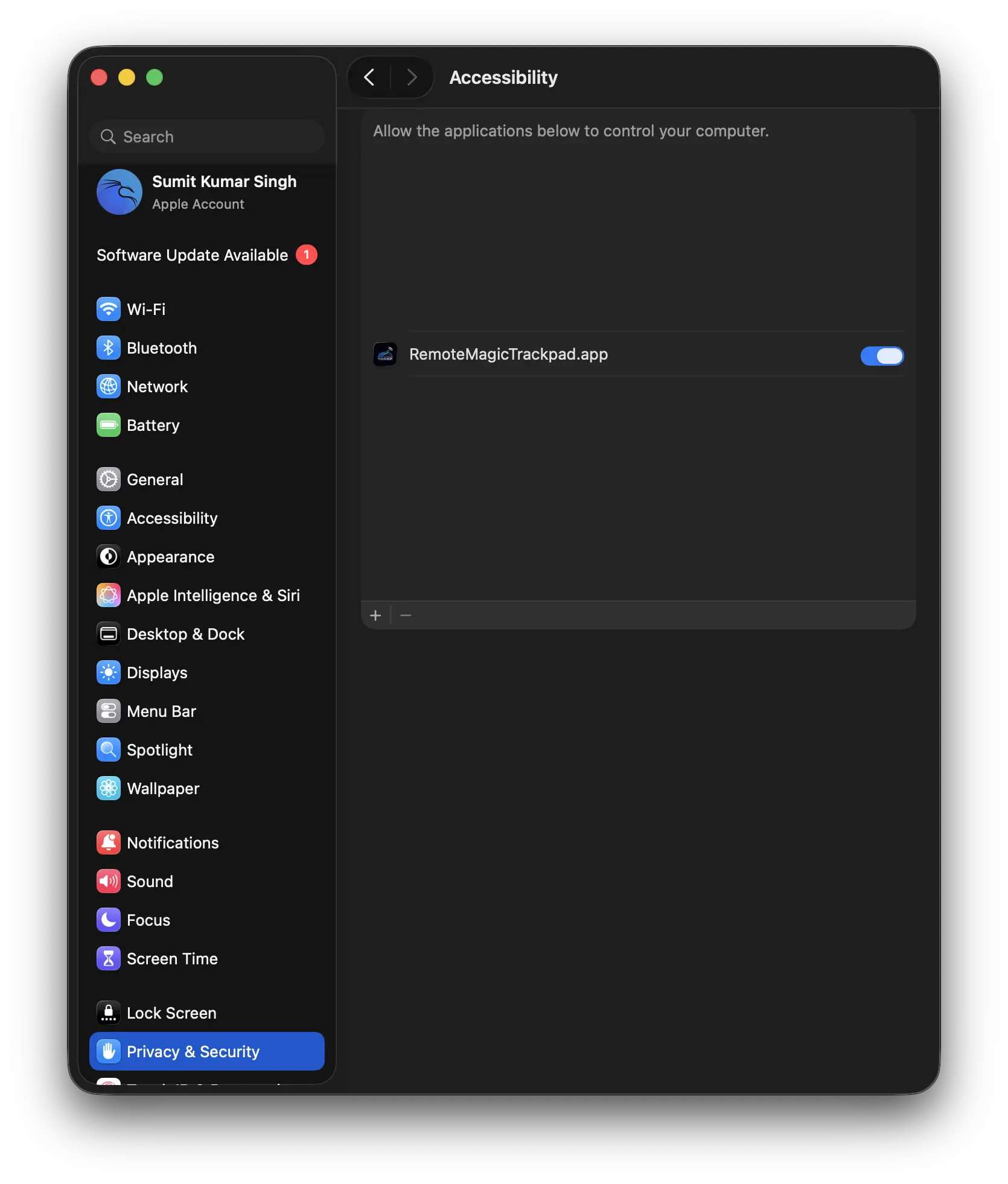
1. Allow Accessibility
Open System Settings → Privacy & Security → Accessibility and enable the companion app.
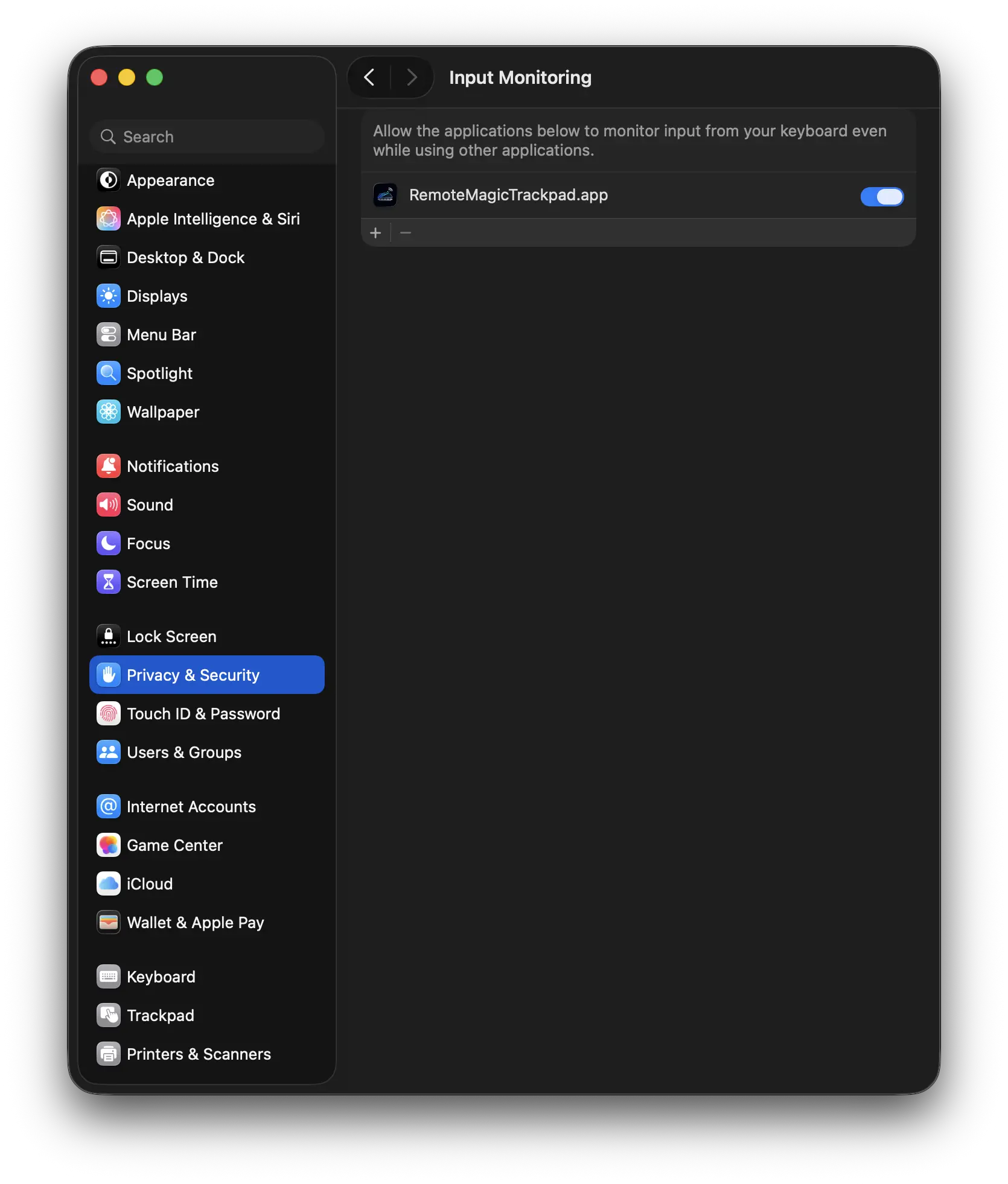
2. Allow Input Monitoring
Open System Settings → Privacy & Security → Input Monitoring and enable the companion app.
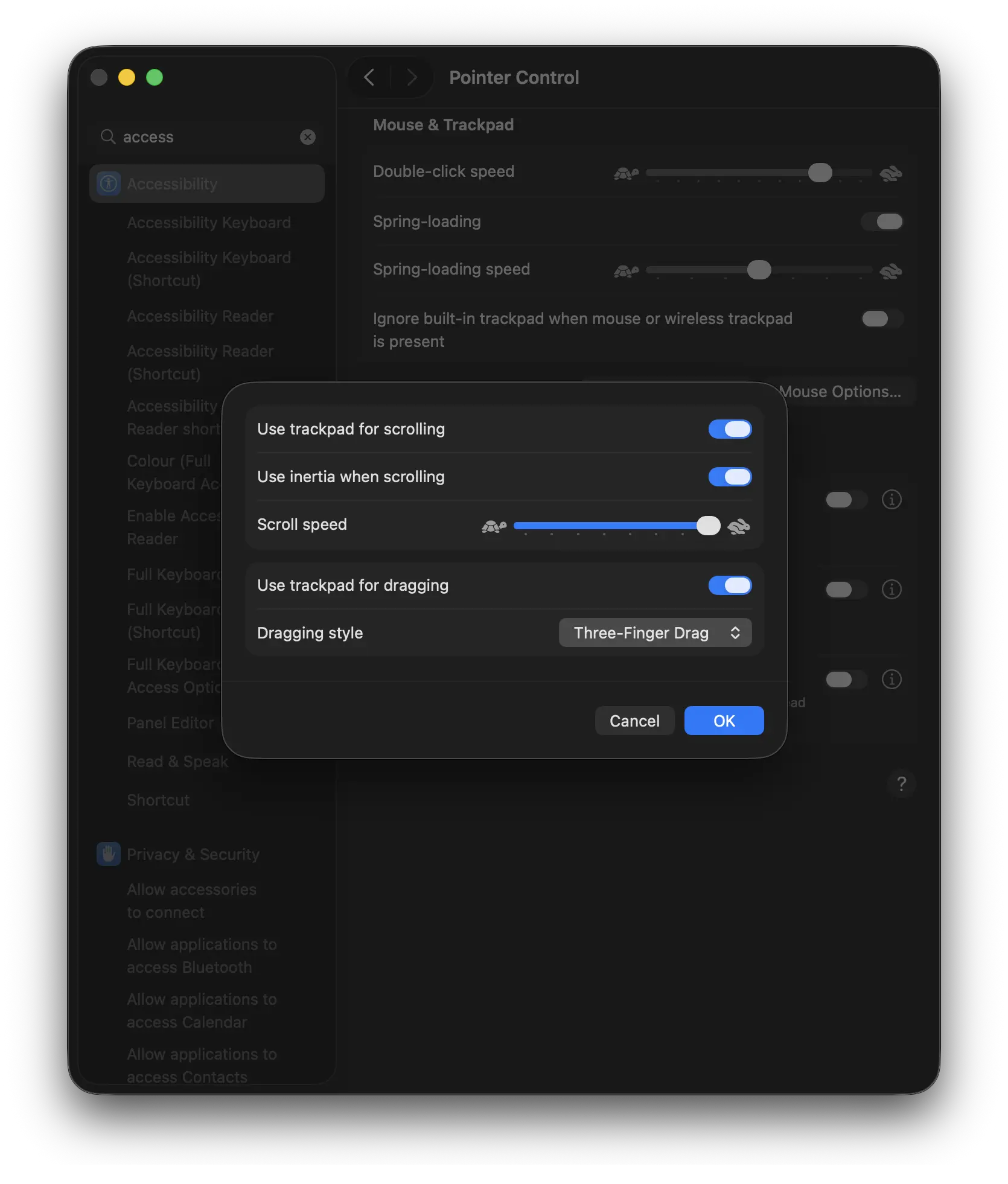
3. Enable 3-Finger Dragging
Open System Settings → Accessibility → Pointer Control → Trackpad Options and enable three-finger drag.
Android Setup
1. Disable 3-Finger Swipe Screenshot Shortcut
Many Android devices use a 3-finger swipe gesture to take screenshots, which intercepts the gesture before it reaches the app. To use all Mac trackpad gestures (e.g., three-finger drag, Mission Control, App Exposé), go to your phone’s Settings → Gestures (or Advanced Features) and turn off the screenshot swipe shortcut.
2. Configure Mission Control to Use 4 Fingers
If you want to use three-finger drag, first set Mission Control / Spaces to 4 Fingers in the app settings. This frees up the three-finger gesture for dragging.
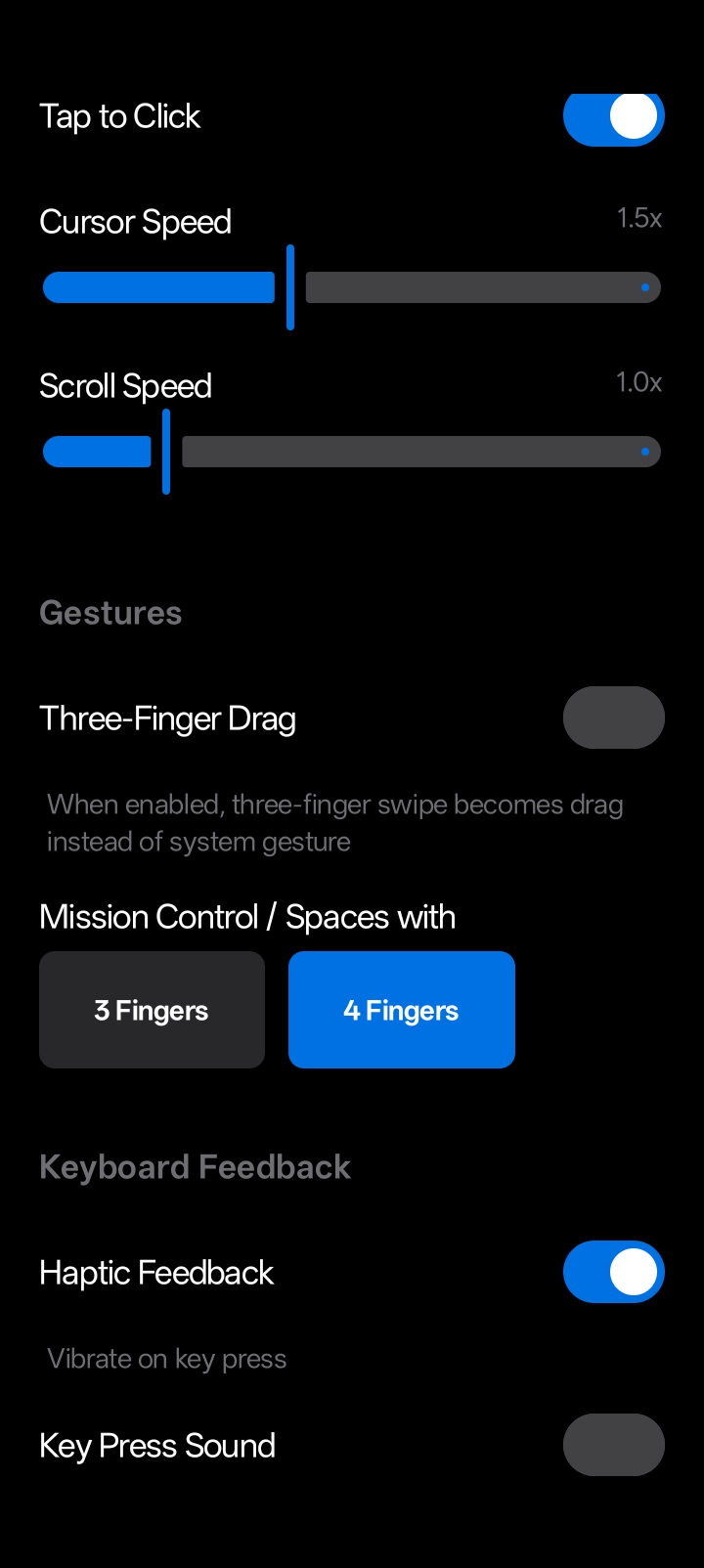
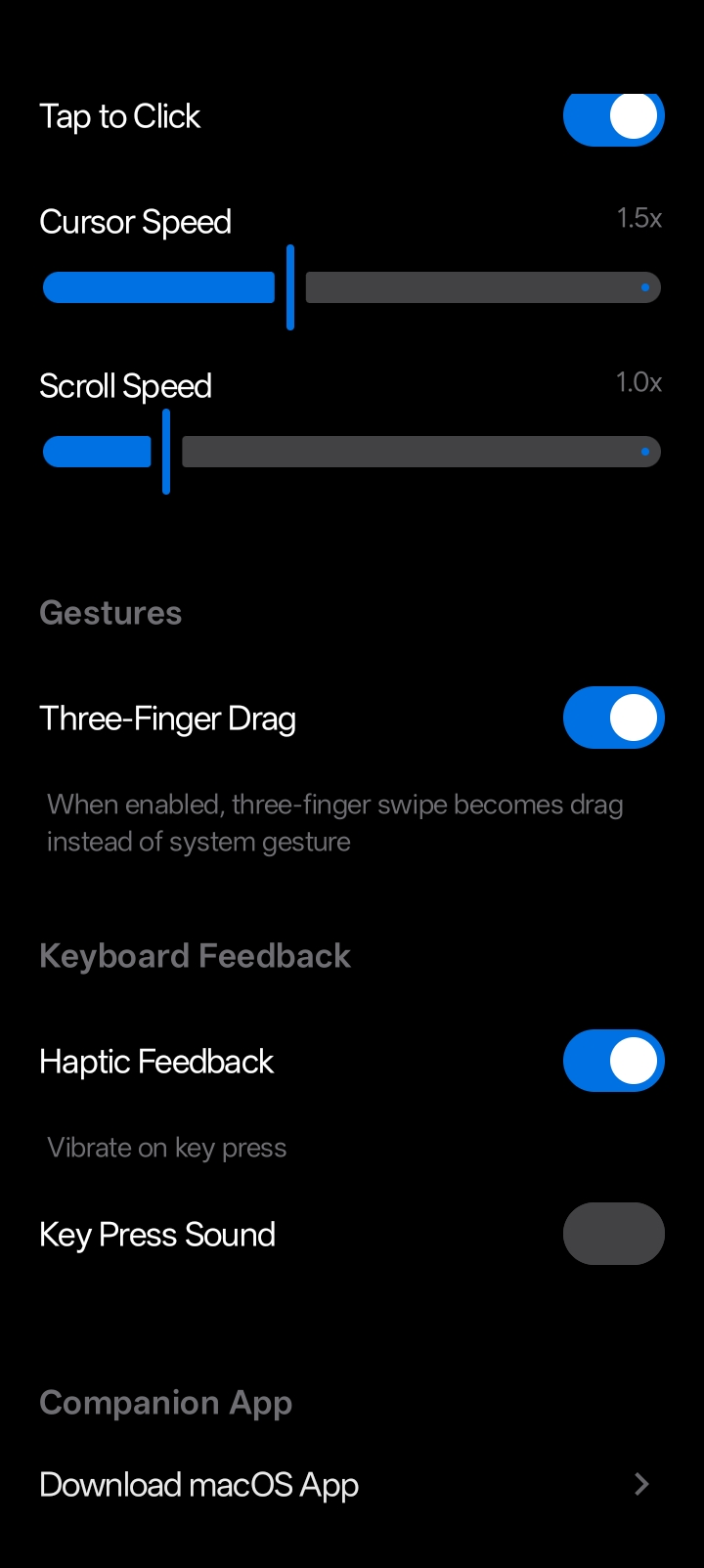
3. Enable Three-Finger Drag
Toggle Three-Finger Drag on in the app’s Gestures settings. When enabled, three-finger swipe becomes drag instead of a system gesture.
Known Issues
- The app may not work properly when another Bluetooth device (e.g., external speaker, headphones) is already connected to your Mac. If you experience connection issues, try disconnecting other Bluetooth devices and reconnecting the app.